Security Objectives Workflow - Score System
Before we dive into the workflow, let’s discuss how the scoring system works. In the next chapter, you can read a short explanation.
How does the Score system work?
On each form, you can indicate the security measures in place, which correspond to your maturity level. Each form has four maturity levels, ranging from 0 to 3.
Use the sliders in the Measures Implemented column to show the measures you have taken, and in the Justification column, you can explain why you believe you have reached that maturity level.
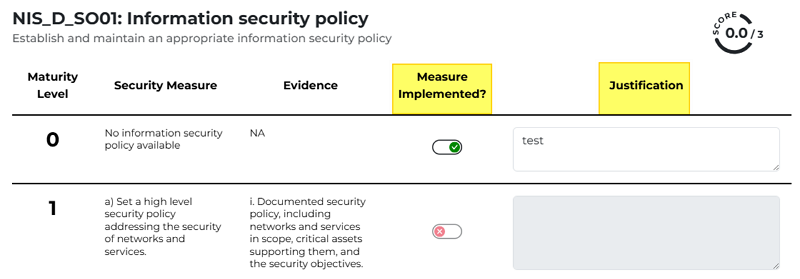
The number of sliders in the Measures Implemented column may vary for each maturity level. However, if all sliders within a given maturity level are green, that level is worth one point. If a maturity level has two sliders, each green slider is worth 0.5 points.
For a maturity level with three sliders, the total value is 1 point if all are green; otherwise, each green slider is worth 0.3 points. For maturity level 3 with only one slider, setting it to green is worth a full point. If any maturity level is completed, you get one point.

If you reach 3 points out of three, the form indicator turns from yellow to green.

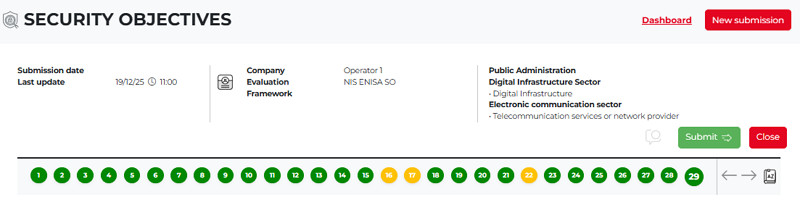
The form numbers can appear in three colors: gray, yellow, and green. The colors indicate the following:
Grey – you have not started filling out the form.
Yellow – you have started filling out the form, but you have not completed it.
Green – you have completed the form.
At the bottom of each form is the Planned Measures field, where you can enter the measures you plan to implement to improve your security posture.
Please complete each form carefully. Review the maturity levels described on each form and select the level that applies to you. Use the sliders where appropriate and provide a short explanation in the Justification column that corresponds to the selected maturity level and sliders.
Note that you can submit your Security Objectives entry only when all form numbers are green.
The screenshot below shows a security objective in which forms 16, 17, and 22 are yellow. As a result, even though the Submit button is light green, the security objective report cannot be submitted.
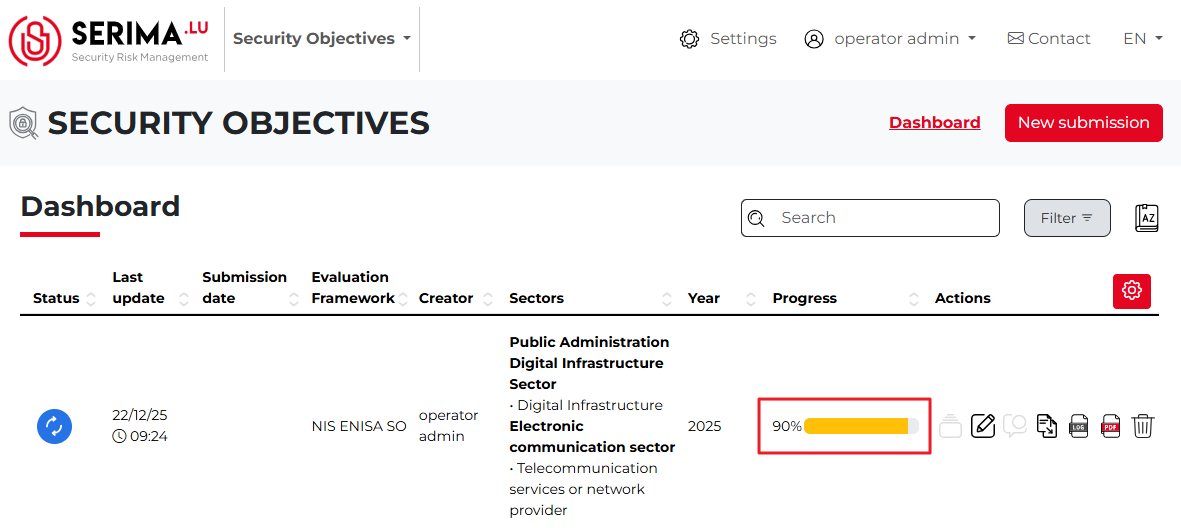
Also, on the Dashboard, in the Progress column of the security objective entry, you can see that the entry is not yet ready for submission (it is only 90% complete).
You can click a form number to jump directly to that form. Make the necessary changes and resolve all remaining issues so that all forms turn green and the entry can be submitted.
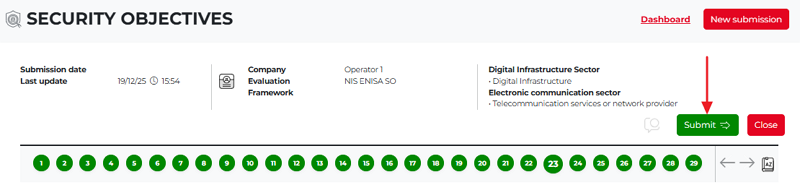
You can now click Submit. The Security Objective entry appears on the Dashboard in green, showing 100% in the Progress column. In the Status column, the entry is marked as Under review. Also, above the Dashboard, a message confirms that your security objective declaration has been submitted:
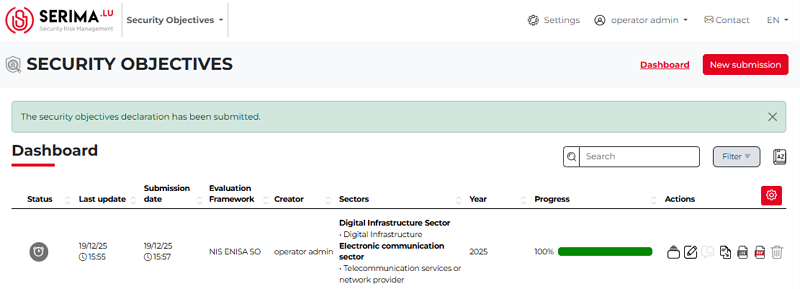
The Operator Admin has submitted the declaration. It is now the Regulator’s responsibility to review it, report any issues, request additional information if needed, or accept the declaration if it is satisfactory.