How to submit a security objective?
To submit a security objective, go to the Security Objectives Dashboard. You can access it either by clicking the Modules drop-down menu and selecting Security Objectives, or by clicking the Go to Dashboard button on the Security Objectives tile in the center of the screen.
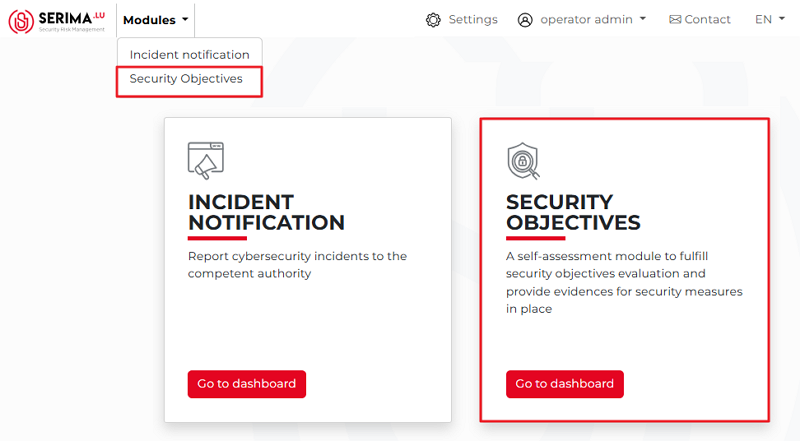
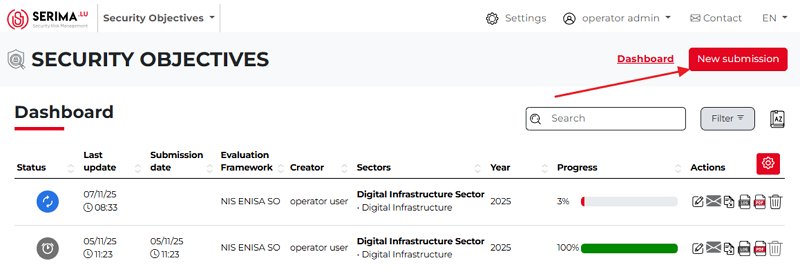
Either way, you will be taken to the Security Objectives dashboard, where you can view an overview of all submitted security objectives. Once on the dashboard, click the New submission button in the top-right corner of the screen.
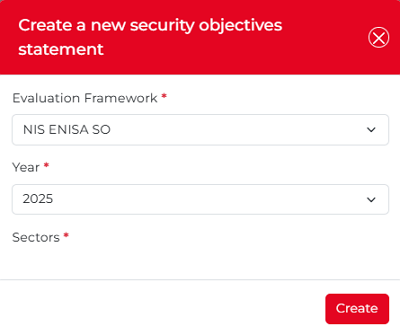
The Create a new security objectives statement pop-up appears. Choose the evaluation framework, year, and sector/s from the dropdown menus.
The Sectors drop-down menu offers multiple options. Once you have selected an option, it will appear in the dropdown (in the screenshot below, the option Digital infrastructure is selected). To select more, click the dropdown again so the options appear, with the checkmark indicating the already selected option.
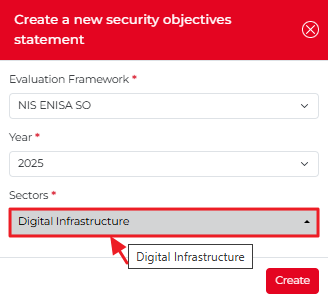
To select additional options, click the drop-down again; the options will appear, with a checkmark indicating the selected items.
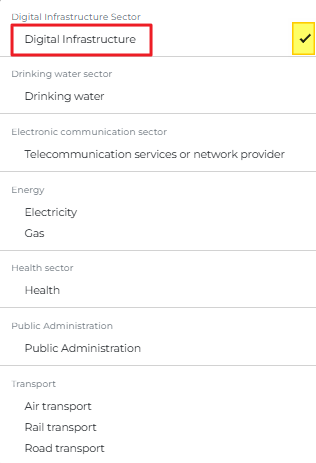
You can select as many options as needed. The selected options appear in the drop-down field and remain visible when you click the Sectors drop-down field again.
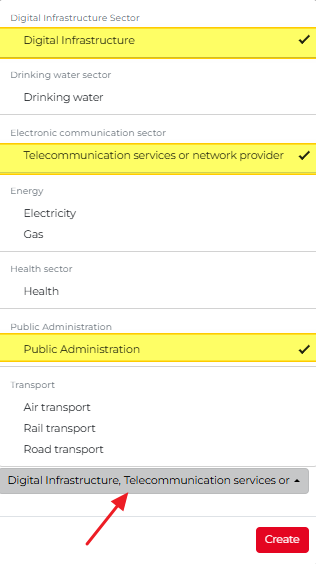
When you click the Sectors drop-down field again, the original pop-up appears with the selected options in the Sectors drop-down. If multiple options are selected, not all of them may be visible. Hover your mouse over the Sectors drop-down field to view the selected options.
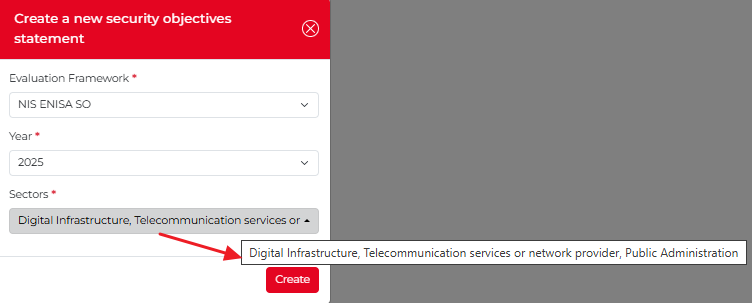
If all three drop-down menus (Evaluation Framework, Year, and Sectors) contain appropriate values, click the create button. The Security Objectives Dashboard appears, and you can start the process. In the following chapter, you can read about the workflow for submitting a security objective.