Security Objectives Workflow - Regulator Admin
When a regulator receives a Security Objectives submission, its status is Under review, and its progress is 0%. These indicators show that a new entry has arrived and should be reviewed.
The regulator can also see when the declaration was submitted in the Submission date column, or sort the entries so that the most recent submissions appear at the top of the list.
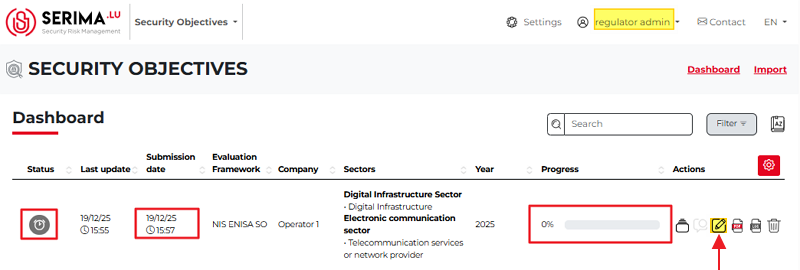
The Regulator admin clicks the Review button (highlighted in yellow and marked with a red arrow above). The selected Security Objective declaration opens, and the Regulator admin can start checking and reviewing its content.
The Regulator Admin cannot change the sliders or the content of the Justification or Planned Measures fields. The Regulator Admin can only use the Review comment column to add comments to the entry.
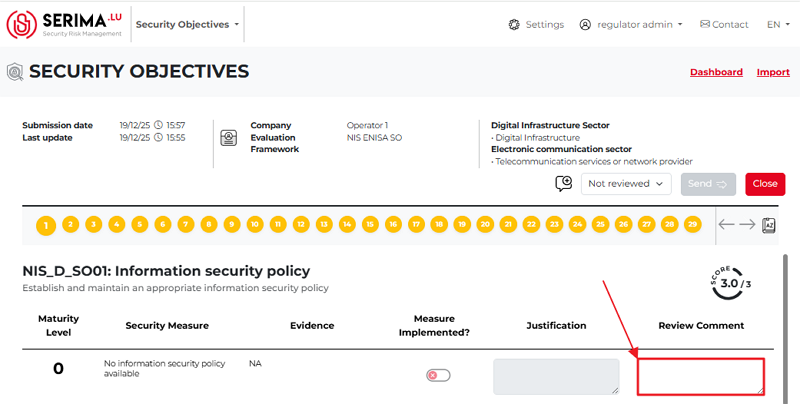
The Regulator Admin reviews the content, adds comments, and decides whether the form of the Security Objectives is approved (Passed) or rejected (Fail) by selecting the appropriate value from the drop-down menu.

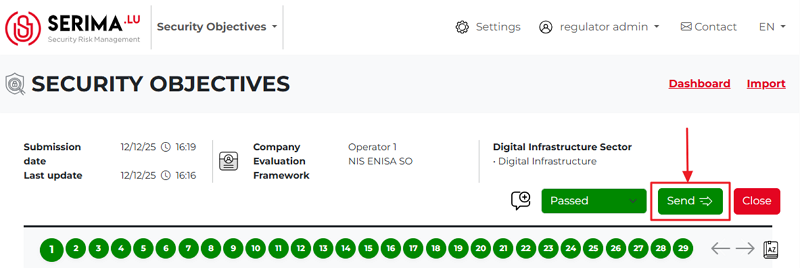
The Regulator Admin should review each form (by selecting either the Passed or Fail options from the drop-down menu) so that the Send button becomes active and turns green.

The Regulator Admin approves the declaration
If the Regulator Admin approves all forms by selecting Passed from the drop-down menu (so that the forms turn green), the Send button becomes active, and the Regulator Admin can send the approved Security Objective declaration back to the Operator Admin.
Once the Regulator Admin clicks Send and writes a comment, the Dashboard changes (marked with red arrows):
A note appears at the top of the screen.
The status icon of the entry turns green, and when the Regulator Admin hovers over it, a pop-up message appears saying Passed and sent.
The review comment icon changes, and the speech bubble shows a blue dot.
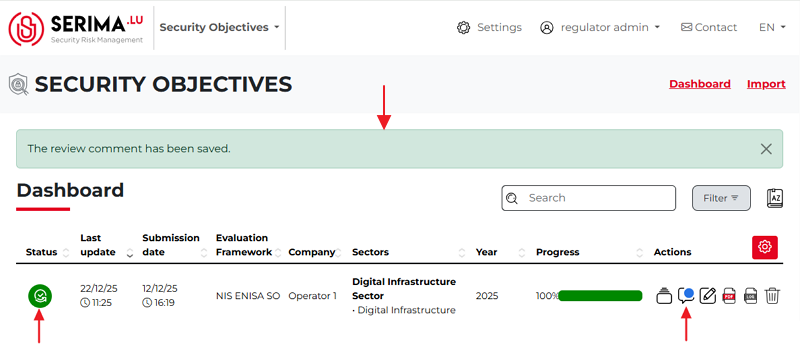
By clicking the Send button, the content of the Security Objectives has been sent to the Operator Admin.
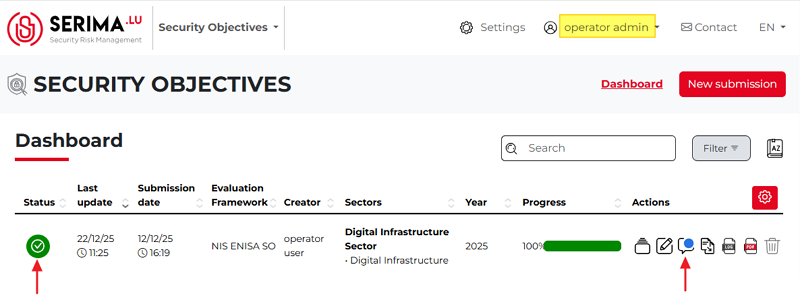
The Operator Admin receives the feedback, and the Security Objectives entry will show the changes:
The status icon of the entry turns green, and when the Operator Admin hovers over it, a pop-up message appears saying Passed.
The review comment icon changes, and the speech bubble shows a blue dot.
The review comment contains the Regulator’s comment. If the Operator Admin clicks the review comment icon, a pop-up appears showing the review status, the Regulator’s comment, and the deadline field.
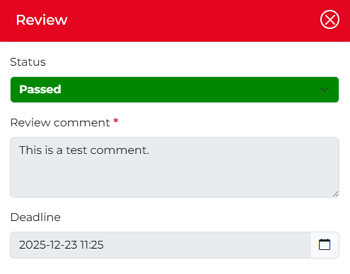
In this case, the Operator Admin has nothing more to do, as the Security Objective declaration has been accepted by the Regulator Admin.
However, not all declarations can be accepted by the Regulator Admin. In the following chapter, we will see what happens when, for any reason, the declaration is rejected, and the Operator Admin must fix the issues.
The Regulator Admin denies the declaration
If any of the forms fail, the Security Objective declaration fails. In the screenshot below, Forms 2, 5, and 13 failed; therefore, their form numbers are shown in red. These forms were denied by the Regulator Admin, and the relevant comments explaining the reasons for failure were added to the Review Comment pop-ups.
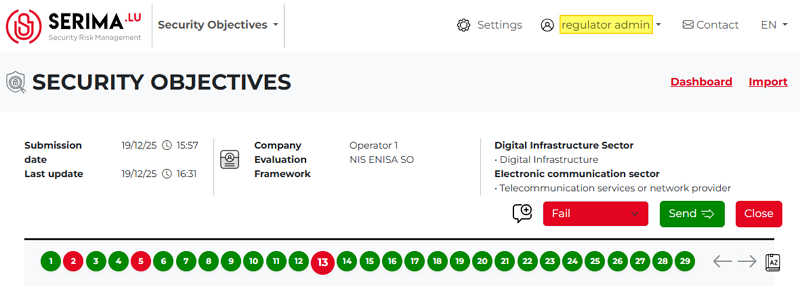
If the Regulator Admin clicks the Send button, the Review pop-up appears (as shown in the screenshot below), where the Regulator Admin can enter a review comment and set a deadline by which the identified deficiencies must be corrected or fixed.
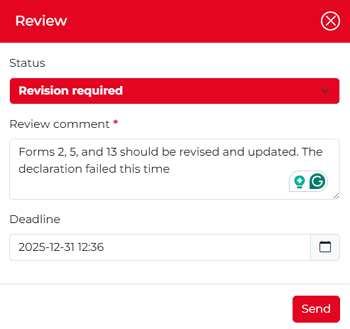
If the Regulator Admin clicks the Send button and finalizes their decision, they will be taken to the dashboard, where they can see the following changes:
A note appears at the top of the screen.
The status icon of the entry turns red, and when the Regulator Admin hovers over it, a pop-up message appears saying Revision required and sent.
The review comment icon changes, and the speech bubble shows a blue dot.
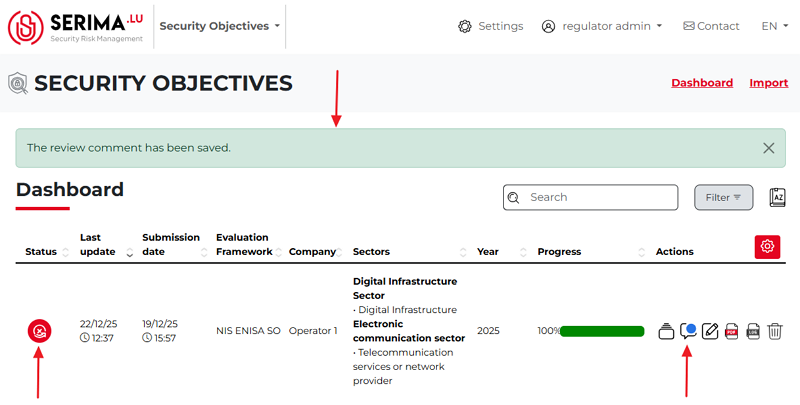
The Operator Admin receives the failed Security Objectives declaration. When the Operator Admin logs in and there is a failed entry, the Admin can see a white X icon on a red circular background in the Status column of the dashboard.
In addition to the Status icon, the blue dot on the Review Comment icon indicates that there is a comment explaining the denial.
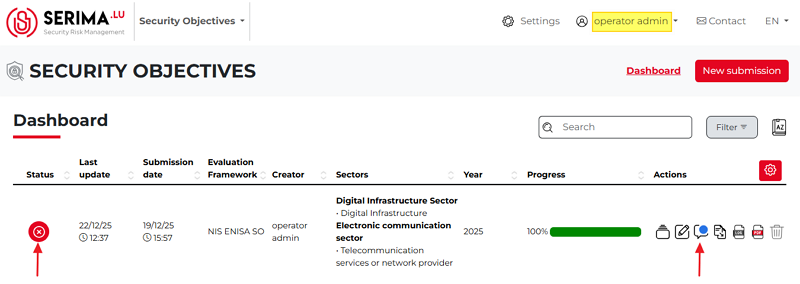
The Operator Admin can read the Regulator Admin’s comment. If the Operator Admin clicks the Review icon, the following pop-up appears, allowing the Admin to decide whether to review or update the Security Objective.
If the admin does not want to make any changes in the first round and only wants to view the rejected declaration, then click the review button; if they want to make changes, then click the update button.
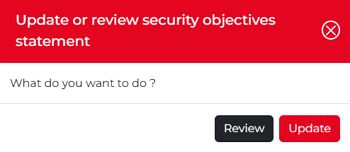
If the Operator Admin chooses to Review the entry, they can view the Regulator Admin’s comments. If the Operator Admin chooses to Update the failed Security Objective, they can make changes, correct the forms, and send the updated Security Objective back to the Regulator Admin.
In this case, the Regulator Admin receives the updated declaration and reviews it again. The Regulator Admin checks the content of the declaration and decides whether it can be approved or must be rejected again.
The Security Objective declaration can be sent back and forth between the two parties until all forms are accepted by the Regulator Admin.
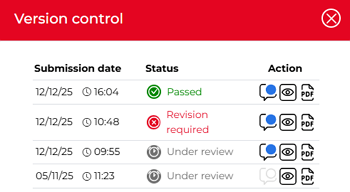
The process can be tracked easily and clearly using the version control function. On the Dashboard, in the Actions column, clicking the Version Control button opens the version control pop-up.
This pop-up allows you to accurately track when each status change occurred and what the status was. Additionally, you can read the related comments by clicking the Comment icon in the Actions column.