Enable two-factor authentication
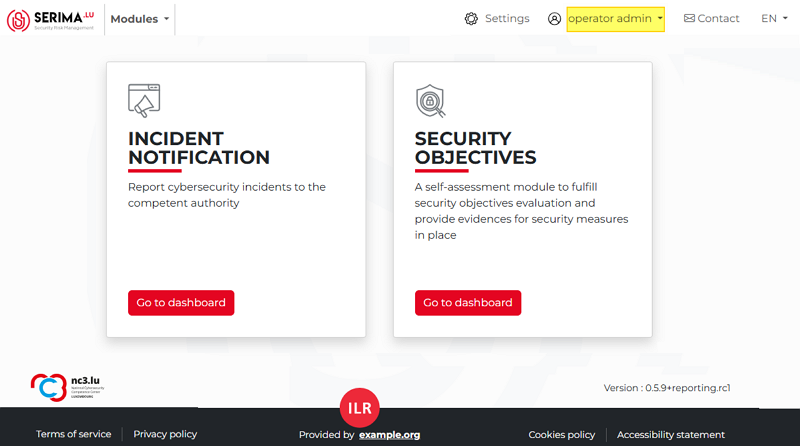
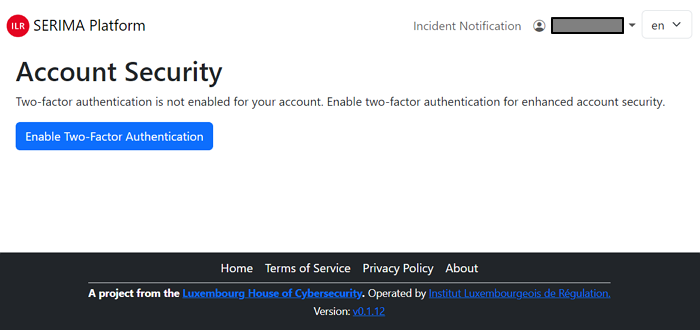
Once you click Register, you are logged into the SERIMA Platform. Since this is your first login, the system suggests you enable two-factor authentication. Click the button Enable Two-Factor Authentication.
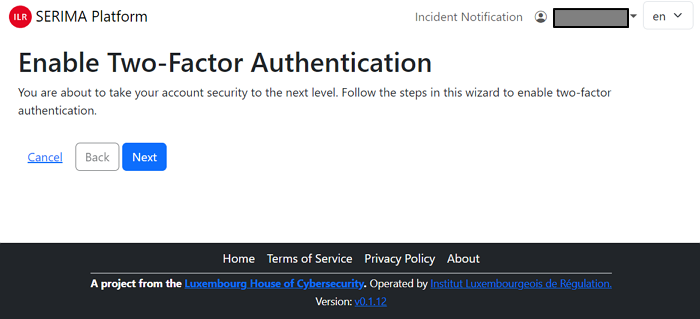
Follow the steps in the wizard to enable 2FA: first, click the Next button.
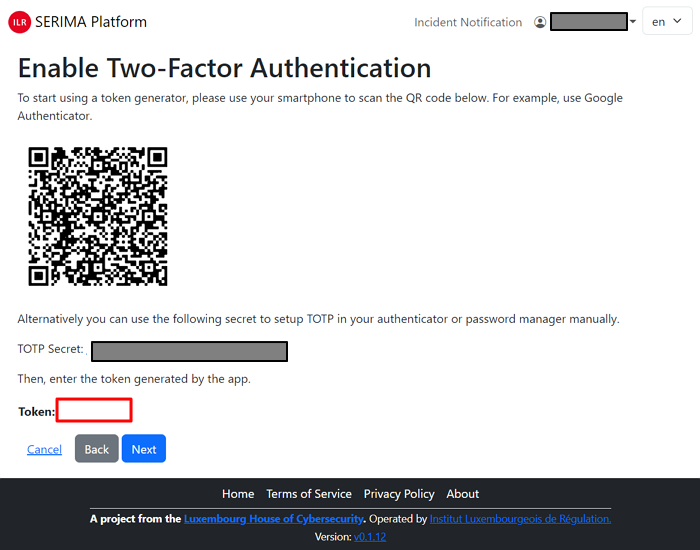
Then either use your smartphone and scan the QR code from the screen, or use the long character set called TOTP Secret to set up TOTP (Time-based One-Time Password) in your authenticator or password manager manually. As the last step, please enter the token (a six-digit number) into the Token field and click Next.
In case you have successfully enabled two-factor authentication, you are greeted with the following screen:
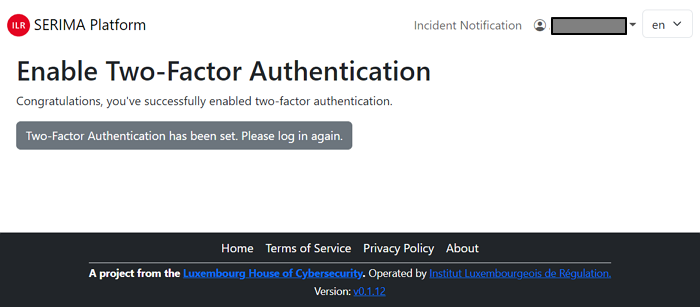
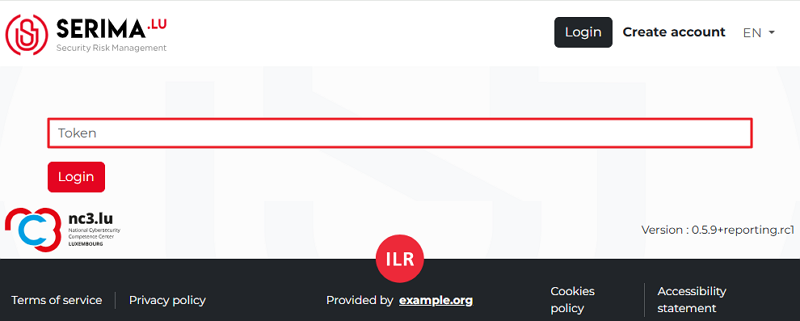
Please click the grey button and log in again. Provide your email address and password and click Log in. Then, open your authenticator on your smartphone and type in the randomly generated Token and click Log in.
As an Operator or User, this is your main page where you land whenever you open this application.
Since this is your first login, there is no incident in the platform to show.