Regulator User
A Regulator User can create Operator Admins and Operator Users and the entities in the system.
In the user interface, click the Settings link to go to the Site Administration screen (the Administration Interface). To return to the user interface, click the Return to user interface link in the upper right-hand corner (circled in red in the screenshot below).
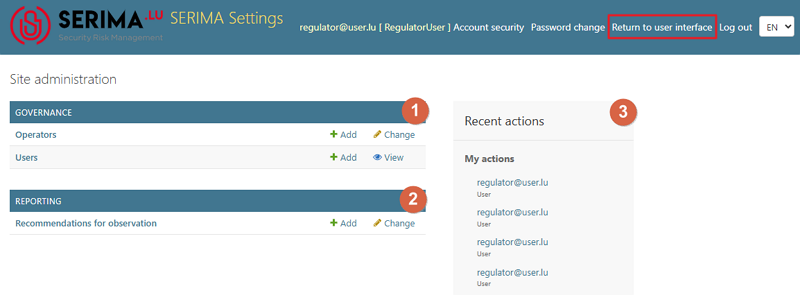
The Administration Console looks very similar to the Operator Admin interface. In addition to the Governance section, it also includes the Reporting section.
Governance
The Governance section contains two links: Operators and Users.
Operators
In the Governance section, you can manage the Operators and Users (you can add, delete, and update them).
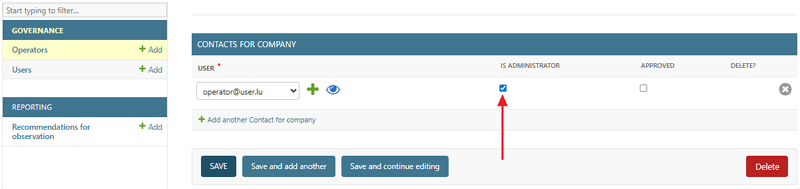
A Regulator User can ‘convert’ Operator Users into Operator Admins by checking the -Is Administrator- checkbox in the Contacts for Company section:
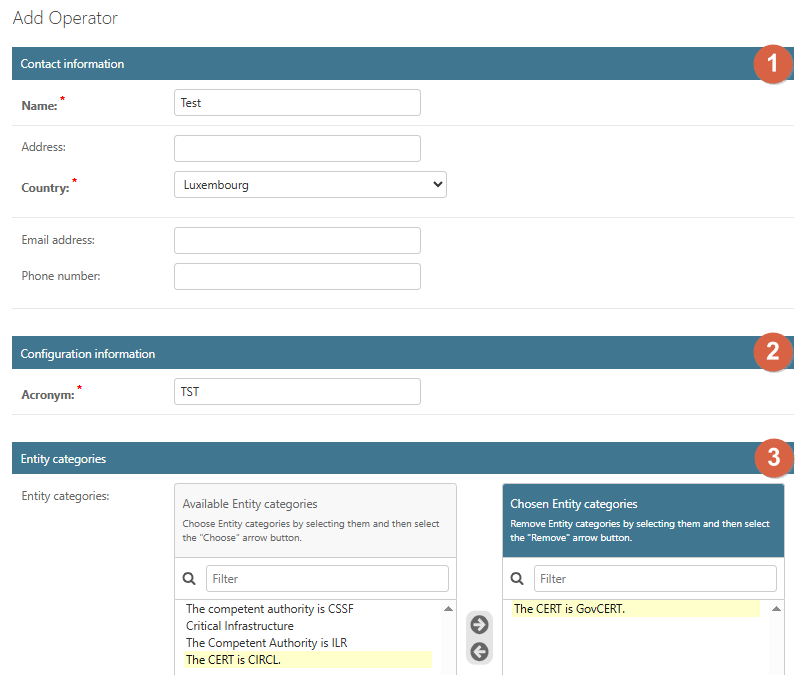
The Regulator Users can add new or change existing Operators as well. First, the Regulator User should populate the Contact Information section of the Operator, then add an acronym for the Operator (in the Configuration information section) and set the Entity categories:
Users
Click the Users link to see the Users table (Select User to view screen). Similar to the Operator Admin, the Regulator User can also see the users linked to the operators in the system.
Please check the Users chapter in the Operator Admin section for further information.
Reporting
In the Reporting section, you can set up recommendations for observations in four languages (English, French, Dutch, and German).
The Reporting module displays a list of recommendations for regulators. It uses a shared database that all regulators can access. A regulator can create a recommendation, describe its purpose, and link it to a specific sector or to all sectors.
The screenshot below shows an example (test recommendation), where two sectors (Digital Infrastructure and Electronic Communication Sector) were selected, and a test description was added.
The Recommendation Name field is mandatory (indicated by a red asterisk); all other fields and options are optional. At least one sector must be selected. You can select multiple sectors at a time, or select all by clicking the Choose All Sectors button.
If you do not choose a sector, then the recommendation will be linked to all sectors.
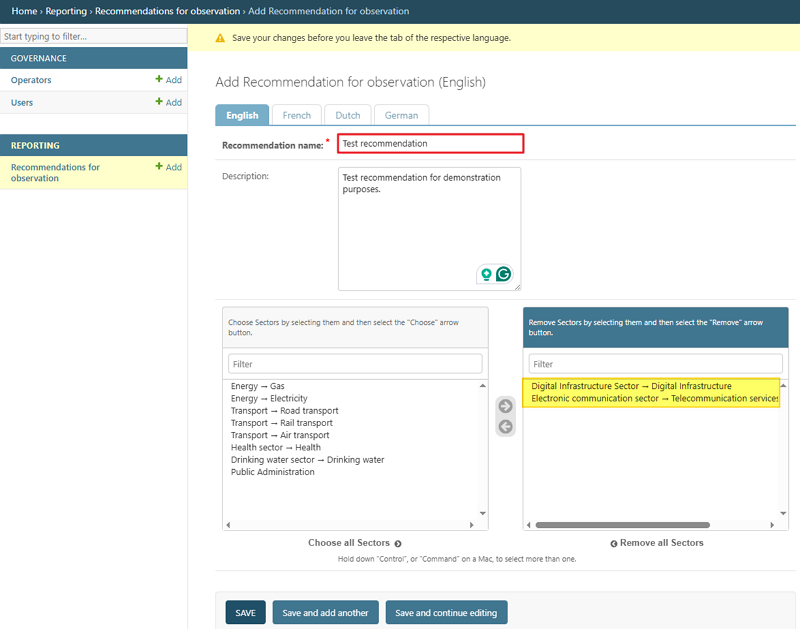
You can Save your changes, Save and add another recommendation, or Save and continue editing to modify the recommendation further.
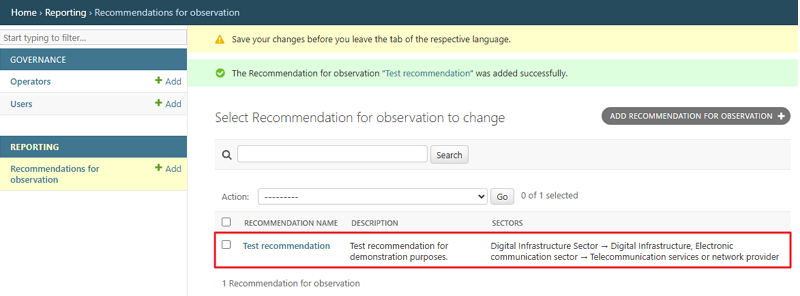
Once your changes are saved, the application confirms that the recommendation was added successfully, and the newly created entry appears in the recommendations list, showing its name, description, and the selected sectors.
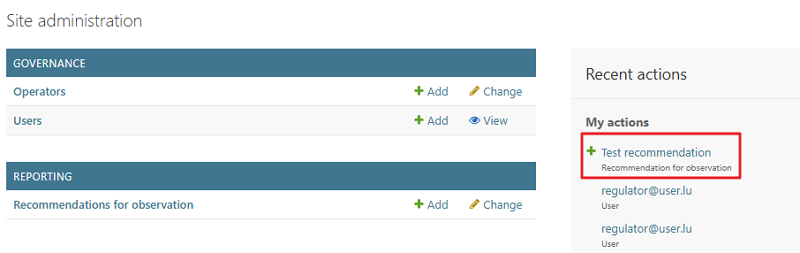
Recent actions
As the name suggests, the Recent Actions section shows your most recent actions. In the previous chapter, a new recommendation was created; therefore, this action appears at the top of the Recent Actions list.